Shopify Combined Listings: The Complete 2026 Guide to Multi-Variant Product Architecture
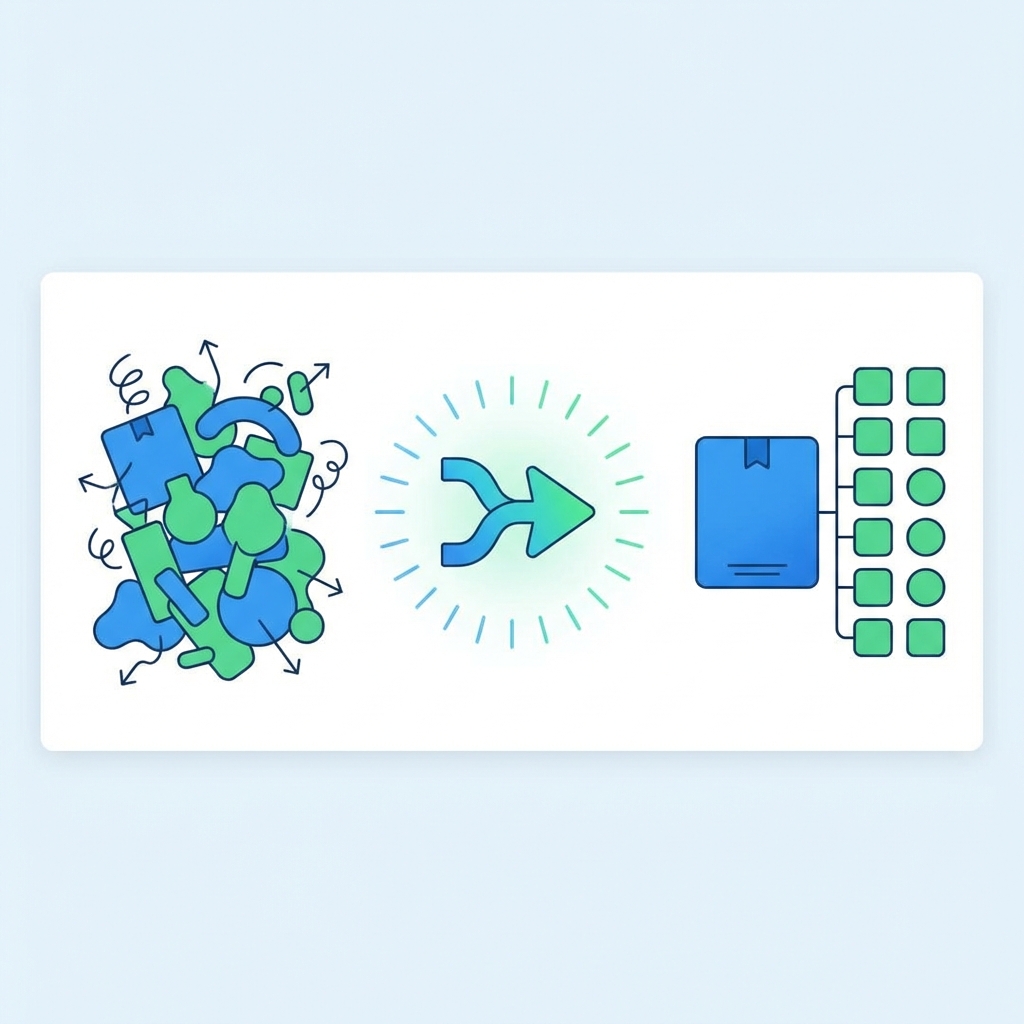
For over a decade, fashion, footwear, and home goods brands on Shopify have struggled with a fundamental problem: they wanted to show each color as a separate product on collection pages (for visual density and SEO benefits), but they wanted customers to experience a unified product page where they could switch between colors seamlessly. This required expensive custom development, fragile metaobject hacks, or monthly app subscriptions. In 2026, Shopify finally solved this natively with Combined Listings. But is it ready for enterprise scale? And how do you actually implement it?
This comprehensive guide covers everything you need to know about Shopify Combined Listings, from the fundamental problem it solves to step-by-step implementation, theme integration, SEO considerations, and real-world case studies.
Complete Implementation Guide Contents
- 1. The "Color Variant" Problem Explained in Depth
- 2. Historical Solutions and Their Limitations
- 3. What Are Shopify Combined Listings?
- 4. How Combined Listings Work Technically
- 5. The SEO Impact: Why This Matters for Rankings
- 6. Native Solution vs. Third-Party Apps: Complete Comparison
- 7. Requirements and Eligibility
- 8. Step-by-Step Setup Guide
- 9. Theme Integration and Code Examples
- 10. Inventory and Fulfillment Considerations
- 11. Real-World Use Cases and Industry Examples
- 12. Comprehensive Pros and Cons Analysis
- 13. Migrating from App-Based Solutions
- 14. Common Implementation Mistakes to Avoid
- 15. Frequently Asked Questions (15+ FAQs)
- 16. Conclusion and Next Steps
1. The "Color Variant" Problem Explained in Depth
Before diving into the solution, let's fully understand the problem that Combined Listings solves. This context is critical for appreciating why this feature matters.
The Standard Shopify Variant Model
By default, Shopify uses a simple product model: one product can have up to 100 variants, and each variant is a combination of up to 3 options (e.g., Color, Size, Material). For a T-shirt in 5 colors and 5 sizes, you'd have 25 variants under one product URL.
This works well for:
- Simple catalogs with few color options
- Stores where visual variety on collection pages isn't critical
- Brands that don't prioritize color-specific SEO
This breaks down for:
- Fashion brands with 10+ color options per style
- Brands wanting to rank for "Blue Running Shoes" not just "Running Shoes"
- Stores where collection pages need to show visual diversity
- Businesses wanting separate Google Shopping feeds per color
The Problem: Single Product with Variants
- Collection Page: Shows only ONE image per product. Customers don't know you have Blue, Red, and Green.
- SEO: Only one URL (
/products/t-shirt). You cannot rank for "Blue T-Shirt" separately. - Media Load: PDP loads ALL variant images (potentially 50+), slowing page speed.
- Google Shopping: One product feed entry. Limited merchandising per color.
- Visual Density: A collection with 10 products shows 10 images. Competitors with split products show 50.
The Goal: Separate Listings, Unified Experience
- Collection Page: Show "Blue T-Shirt", "Red T-Shirt", "Green T-Shirt" as separate cards.
- SEO: Separate URLs for each color keyword (
/products/t-shirt-blue). - PDP: When viewing Blue, customer can click "Red" swatch and seamlessly transition without losing context.
- Google Shopping: Separate feed entries per color with targeted titles.
- Media Load: Only load images for the current color variant.
2. Historical Solutions and Their Limitations
Before Combined Listings, brands used several workarounds. Understanding these helps you appreciate the native solution and helps if you're migrating from one of them.
Approach 1: Separate Products with Metafield Linking
Create "T-Shirt Blue", "T-Shirt Red", "T-Shirt Green" as completely separate products. Use metafields to store a "group ID" that links them. Custom Liquid code on the PDP reads all products with the same group ID and displays them as color swatches.
Pros:
- Full control over each product (separate descriptions, images, pricing)
- Works with any theme (with custom code)
- Excellent SEO (each color is a real product URL)
Cons:
- Requires significant custom Liquid development
- Clicking a swatch = full page reload (slow UX)
- Managing inventory across separate products is messy
- Updating shared content (like description) requires updating all products
- No native admin UI for managing groups
Approach 2: Third-Party Apps (Infinite Options, Product Customizer, etc.)
Install an app that creates a virtual connection between products. The app injects JavaScript to handle swatch clicks and fetch sibling product data via API calls.
Pros:
- No custom development required
- Admin UI for managing groups
- Some apps offer AJAX transitions (no full reload)
Cons:
- Monthly subscription cost ($50-$500+/month)
- Additional JavaScript payload (impacts Core Web Vitals)
- Dependency on third-party company
- Potential conflicts with other apps
- Limited customization without developer involvement
Approach 3: The "Mega Variant" Hack
Keep everything as variants but use CSS hacks to hide variant selectors and display custom swatch UI. Use JavaScript to trigger variant selection programmatically.
Pros:
- Single product, simple inventory
- Works with native Shopify analytics
Cons:
- Still only one URL (poor SEO)
- Not sustainable beyond 100 variants
- Still loads all images
- Fragile CSS that breaks with theme updates
3. What Are Shopify Combined Listings?
Shopify Combined Listings is a native feature (available on Shopify Plus and Advanced plans with specific theme requirements) that allows you to create a parent-child relationship between products. The parent product acts as the "hero" or "combined" product, and child products represent specific variants (typically colors) that appear as separate listings on collection pages.
Key Terminology
- Parent Product (Combined Listing): The primary product that holds shared content like title, description, and reviews. This is what customers experience on the PDP.
- Child Products (Component Products): Individual products representing specific variants (e.g., "Cotton T-Shirt - Blue"). These appear as separate cards on collection pages with their own images, URLs, and SEO metadata.
- Option Values: The defining characteristic that differentiates children (usually "Color"). When you create a Combined Listing, you specify which option creates the split.
How It Differs from Normal Variants
| Aspect | Standard Variants | Combined Listings |
|---|---|---|
| Collection Display | One card per product | One card per child product (each color shows separately) |
| URLs | One product URL | Separate URLs for each child |
| SEO Titles | One title for all | Unique title per child |
| PDP Experience | Dropdown or swatches (same page) | Swatches that switch context seamlessly (using React architecture) |
| Admin Management | One product entry | Parent + Children structure |
| Google Shopping | One feed entry | Separate entries per child |
4. How Combined Listings Work Technically
The Data Model
Under the hood, Combined Listings uses Shopify's GraphQL Admin API with new fields:
combinedListing: A new object type that represents the parent-child relationship.combinedListingChildren: A connection from the parent product to its children.parentProduct: A reference from a child product back to its parent.
When you create a Combined Listing, Shopify:
- Creates a parent product (or uses an existing one)
- Creates child products for each option value (or links existing products)
- Establishes the relationship in the database
- Configures how the PDP should render swatches
The Storefront Behavior
On the storefront, when a customer views a Combined Listing:
- The page loads the currently selected child product's data (images, price, availability)
- The swatch selector displays all sibling children
- Clicking a different swatch triggers a seamless context switch
- The URL updates to the new child's URL (for proper SEO and shareability)
- The page content updates without a full reload (using React-based architecture)
This is the key UX improvement: Unlike metafield hacks that require full page reloads, Combined Listings leverage Shopify's modern React architecture (part of Hydrogen/Oxygen tech) to make the switch feel instant, even though the URL changes.
5. The SEO Impact: Why This Matters for Rankings
This is where Combined Listings become a game-changer for brands serious about organic traffic.
Long-Tail Keyword Targeting
With standard variants, you have one product page trying to rank for:
- "Cotton T-Shirt"
- "Blue Cotton T-Shirt"
- "Red Cotton T-Shirt"
- "Green Cotton T-Shirt"
This is a losing battle. Google ranks one page for one primary keyword. You might rank for "Cotton T-Shirt" but you're leaving "Blue Cotton T-Shirt" on the table.
With Combined Listings:
/products/cotton-t-shirt-bluetargets "Blue Cotton T-Shirt"/products/cotton-t-shirt-redtargets "Red Cotton T-Shirt"- Each child has its own H1, meta title, meta description, and alt tags optimized for its color keyword.
Google Shopping Optimization
In your product feed (whether via Shopify's native channel or a feed management app), each child product becomes a separate item. This means:
- Separate product titles in Shopping ads: "Blue Cotton T-Shirt" vs "Red Cotton T-Shirt"
- Individual images matching the specific color
- The ability to bid differently per color based on performance
- More real estate in Shopping results when multiple colors appear
Canonical URL Handling
Shopify handles canonical URLs intelligently with Combined Listings:
- Each child product has its own canonical URL (no self-referential canonicals to the parent)
- This tells Google "these are legitimately separate pages, not duplicates"
- Internal linking from the parent distributes authority to children
Structured Data Implications
Each child product generates its own Product schema markup with:
- Unique
@id - Color-specific
name - Separate
imagearrays - Individual
offerswith availability and price
This improves rich snippet eligibility and helps Google understand your catalog structure.
6. Native Solution vs. Third-Party Apps: Complete Comparison
Native Combined Listings
- Cost: Included with Plus/Advanced
- Performance: Native React architecture = instant transitions
- Admin UI: Clean, native Shopify admin interface
- Support: First-party Shopify support
- Theme Compatibility: Requires compatible 2.0 theme
- Customization: Limited to what Shopify exposes
- Future Updates: Continuously improved by Shopify
Third-Party Apps
- Cost: $50 - $500+/month
- Performance: JavaScript injection = additional latency
- Admin UI: Separate dashboard (context switching)
- Support: App developer support (varies)
- Theme Compatibility: Works with most themes
- Customization: Often more flexible (bundling, etc.)
- Risk: App could be discontinued or acquired
My Recommendation: If you're on Plus or Advanced and your theme supports Combined Listings, go native. The performance difference alone is worth it. Use apps only if you need features Combined Listings doesn't support (like complex bundle logic or cross-product options).
7. Requirements and Eligibility
Plan Requirements
- Shopify Plus: Full Combined Listings support
- Shopify Advanced: Supported (as of late 2025)
- Shopify Basic/Shopify: Not currently supported
Theme Requirements
Your theme must be a Online Store 2.0 theme with specific templates that support Combined Listings. Key requirements:
- The product template must use JSON templates (not .liquid)
- The theme must implement the
combined_listingobject in Liquid - Proper use of sections and blocks architecture
Themes with native support: Dawn (latest), Sense, Crave, Studio (Shopify's free themes). Many premium theme developers have added support in 2025/2026.
Themes that need updates: Older 1.0 themes, heavily customized themes, custom proprietary themes.
Product Requirements
- Products must have at least one option (typically "Color")
- Each option value becomes a potential child product
- Maximum limits follow standard Shopify variant limits
8. Step-by-Step Setup Guide
Method 1: Creating a New Combined Listing
- Install the Combined Listings App: Go to Shopify Admin > Apps > Search for "Combined Listings" (it's a Shopify-made helper app). Install it.
- Create the Parent Product: Create a new product as you normally would. Add all the shared content (title base, description, collections, tags).
- Add Variants: Add the option that will create the split (e.g., "Color" with values "Blue", "Red", "Green").
- Enable Combined Listing: In the product editor, look for "Combined Listing" section. Click "Create Combined Listing".
- Configure Children: Shopify will create child products for each option value. For each child:
- Set a unique SEO title (e.g., "Blue Cotton T-Shirt | Brand Name")
- Set a unique meta description
- Add color-specific images
- Set the URL handle (e.g.,
cotton-t-shirt-blue)
- Publish: Set all products to active and add to relevant collections.
Method 2: Converting Existing Products to Combined Listing
If you already have separate products (from a metafield-based setup or an app), you can link them:
- Choose which product will be the "Parent" (usually the most popular color)
- In the Parent product, go to Combined Listings section
- Click "Add existing products as children"
- Search and select the sibling products
- Map the option values (e.g., Product "Blue T-Shirt" = Color "Blue")
- Confirm and save
9. Theme Integration and Code Examples
For developers who need to customize or troubleshoot, here's how Combined Listings appear in Liquid:
Accessing Combined Listing Data
Optimizing Collection Pages
On collection pages, each child appears as a separate card. You may want to:
- Show the child's featured image (color-specific)
- Display the child's title (including color)
- Link to the child's URL directly
This happens automatically if your theme supports Combined Listings, but for custom themes:
10. Inventory and Fulfillment Considerations
Inventory Tracking
Each child product tracks inventory independently. If "Blue T-Shirt" has 50 units and "Red T-Shirt" has 30 units, these are separate inventory counts. This is actually beneficial because:
- Clearer visibility per color in reports
- Easier to set reorder points per color
- No confusion about which variant sold
Fulfillment
Orders containing Combined Listing children appear as normal line items. The fulfillment team sees "Cotton T-Shirt - Blue (Size: M)" just like any other product. No special handling required.
Returns and Exchanges
If a customer wants to exchange "Blue (M)" for "Red (M)", they're technically exchanging between two different products (children of the same parent). Your return policy and system need to handle cross-product exchanges, which they likely already do.
11. Real-World Use Cases and Industry Examples
Use Case 1: Fashion Brand with 15+ Colors Per Style
Brand Profile: Mid-market fashion brand with 200 styles, average 12 colors each.
Before: Single products with 60+ variants (12 colors × 5 sizes). Collection pages looked sparse. Struggled to rank for color-specific keywords.
After: Combined Listings with each color as a child. Collection page now shows 12 cards per style. Organic traffic for color keywords increased 40% within 6 months.
Implementation Time: 3 weeks (including theme adjustments and SEO optimization).
Use Case 2: Furniture Brand with Material Variations
Brand Profile: DTC furniture brand selling sofas in 8 fabric options.
Before: One product with "Fabric" variant. Google Shopping showed one image regardless of fabric.
After: Each fabric is a child product. Shopping ads now show "Velvet Blue Sofa" with velvet-specific photos. ROAS improved 25%.
Bonus: Using metafields to store fabric swatches (hex codes), the PDP shows material-accurate swatch colors.
Use Case 3: Footwear Brand Competing Against Nike
Brand Profile: Athletic footwear startup in a crowded market.
Challenge: Can't outrank Nike for "running shoes" but can compete for "neon green running shoes women's size 8".
After: Combined Listings with each colorway as a child. Each child has color + gender in URL handle and title. Long-tail traffic became primary acquisition channel.
12. Comprehensive Pros and Cons Analysis
Advantages
- SEO Power: Target color-specific long-tail keywords with dedicated URLs.
- Visual Density: Collection pages appear more visually rich.
- Google Shopping: Separate feed entries improve ad targeting.
- Performance: Native implementation means no third-party JS overhead.
- UX: Seamless swatch switching without page reloads.
- No Monthly Fee: Unlike apps, no ongoing subscription.
- Shopify-Supported: Continuous improvements and first-party support.
- Analytics Clarity: Each child product has separate analytics.
Challenges
- Plan Requirement: Plus or Advanced plan only.
- Theme Compatibility: Not all themes support it natively.
- Content Duplication Risk: Must differentiate child descriptions to avoid thin content.
- Setup Overhead: More products to manage vs. single product with variants.
- Review Aggregation: Reviews may need app help to aggregate across children.
- Reporting Adjustment: "Best sellers" may show children separately.
- Learning Curve: Team needs to understand new structure.
13. Migrating from App-Based Solutions
If you're currently using an app like Infinite Options, Custom Product Linker, or similar, here's how to migrate:
Phase 1: Audit and Document (1 Week)
- Export your current product groupings from the app
- Document how swatches are currently rendered
- Note any custom logic (e.g., bundle pricing, cross-sells)
- Identify which products will become parents vs. children
Phase 2: Parallel Setup (2-3 Weeks)
- Set up Combined Listings in a development store first
- Test theme compatibility
- Create a sample group and verify collection/PDP behavior
- Compare SEO output (titles, canonicals, schema) to current setup
Phase 3: Data Migration (1-2 Weeks)
- Using the Shopify Admin API or bulk operations, convert existing product groups to Combined Listings
- Verify URL handles remain unchanged (for SEO continuity)
- Set up 301 redirects if any URLs change
- Test all redirects thoroughly
Phase 4: Cutover (1 Day)
- Disable the old app's frontend scripts
- Enable Combined Listings in your theme
- Monitor for broken swatches or 404s
- Verify Google Search Console for crawl errors
Phase 5: App Removal (After 30 Days)
- After confirming stable operation, uninstall the old app
- Clean up any leftover metafields if desired
- Document new architecture for your team
14. Common Implementation Mistakes to Avoid
- Using Identical Meta Titles/Descriptions: Each child needs unique SEO metadata. "Cotton T-Shirt" for all colors is a missed opportunity for "Blue Cotton T-Shirt."
- Ignoring Mobile Testing: Swatch selectors need to be tap-friendly. Test on real devices.
- Not Setting Up Redirects: If URL handles change during setup, you'll lose existing rankings. Always preserve or redirect.
- Forgetting About Reviews: If you use a third-party review app, ensure it aggregates reviews across children. Yotpo, Stamped, and Judge.me all have options for this.
- Over-Splitting: Not every product needs Combined Listings. A product with 2 colors might be fine as standard variants.
- Neglecting Schema: Verify structured data is correctly outputting child-specific data. Use Rich Results Test.
15. Frequently Asked Questions (15+ FAQs)
What plans support Combined Listings?
As of January 2026, Shopify Plus and Shopify Advanced support Combined Listings. Basic and Shopify plans do not.
Do I need the Combined Listings app?
The app is a helper tool that provides a UI for managing groups. Combined Listings functionality is built into the platform, but the app makes setup easier.
Will my theme work with Combined Listings?
If you're using Dawn or another modern Shopify 2.0 theme, likely yes. Older themes or heavily customized themes may need updates.
Can I use Combined Listings for sizes instead of colors?
Technically yes, but it's not recommended. The UX is designed for mutually exclusive visual options (like colors). Size should remain a standard variant within each child.
How do reviews work with Combined Listings?
Natively, reviews are per-product. If you want reviews to aggregate across children, you'll need a review app that supports product groups (most major apps do).
Does Combined Listings affect my Google Shopping feed?
Yes, positively. Each child product becomes a separate entry in your feed with its own title, image, and URL. This improves targeting.
Can I have different prices per child?
Yes. Each child is technically a separate product, so pricing can vary (e.g., premium materials cost more).
What happens to variant-level metafields?
Child products have their own metafields. You'd use product metafields (not variant metafields) for color-specific data like hex codes.
Is there a limit to how many children I can have?
There's no strict limit on children, but practical limits apply based on UX and management overhead.
Can I bulk-create Combined Listings?
Yes, using the Shopify Admin API or bulk CSV operations. This is how agencies handle large migrations.
How does inventory sync work?
Inventory is managed per child product. There's no automatic "pooling" of inventory across children.
Will swatch clicks reload the page?
No, that's the magic. Combined Listings use React-based architecture for instant transitions. The URL changes, but there's no full page reload.
Can I use Combined Listings with Shopify POS?
Yes. POS sees each child as a normal product. Staff can scan either the child SKU or the parent, depending on your setup.
What about B2B pricing with Combined Listings?
B2B catalogs and tiered pricing work per child product. You can set different B2B prices for "Blue" vs "Red" if needed.
How do discounts apply to Combined Listings?
Discounts can target specific children or the entire "group" using collections. Shopify Functions also work normally with Combined Listings products.
16. Conclusion and Next Steps
Shopify Combined Listings represents a significant evolution in how Shopify handles multi-variant products. For brands that have struggled with the color-variant problem for years—using expensive apps, fragile custom code, or just living with poor collection page visuals—this native solution is a game-changer.
The SEO benefits alone make it worth implementing. The ability to target long-tail color keywords, improve Google Shopping performance, and create visually rich collection pages directly translates to revenue.
Your Action Plan
- Audit your catalog: Identify which products would benefit from Combined Listings (typically high-color-count items).
- Check eligibility: Verify your plan supports it and your theme is compatible.
- Start small: Implement Combined Listings for 5-10 products first. Learn the workflow.
- Optimize SEO: Write unique meta titles and descriptions for each child.
- Monitor performance: Track organic traffic for color keywords and Google Shopping ROAS.
- Scale: Apply to your full catalog once you're confident in the setup.
Need Help Implementing Combined Listings?
Whether you need theme modifications, bulk migration from an app-based solution, or strategic guidance on which products to split, I can help. I've implemented Combined Listings for fashion, furniture, and consumer goods brands on Shopify Plus.
Request Implementation Help